T1: R Basics
What are R and R studio?
TO DO! Watch this
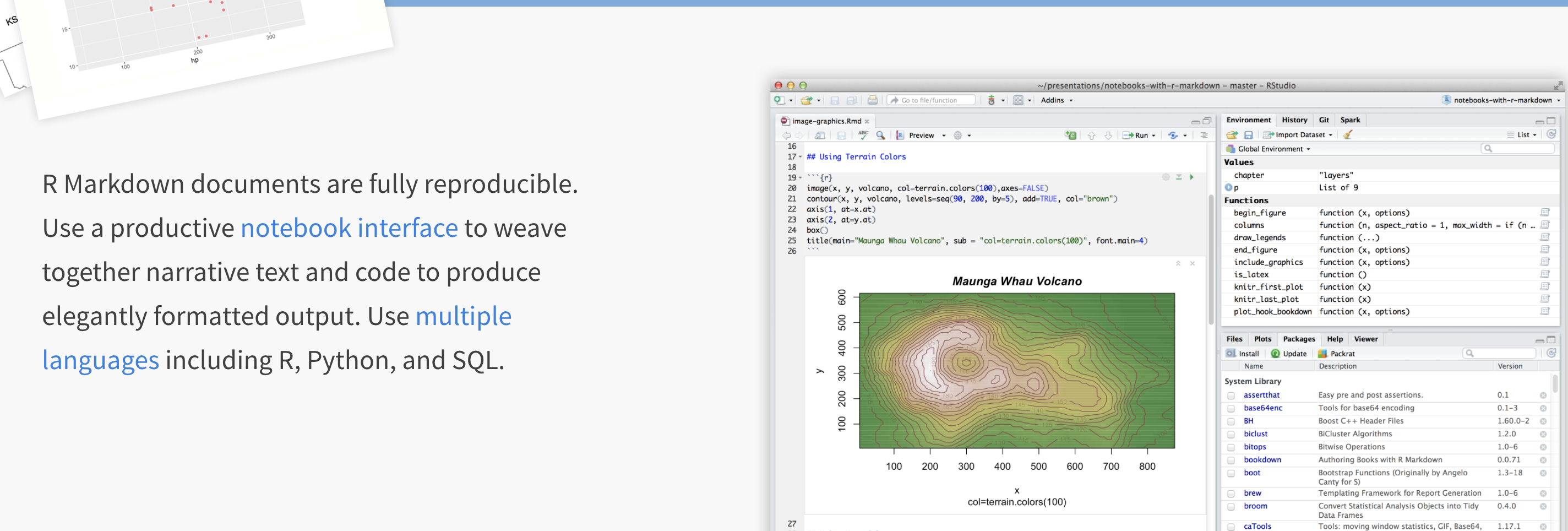
Watch this 1 minute video on R-Studio: https://www.rstudio.com/products/rstudio/
Or, if you prefer, this 5 minute video
R is a LANGUAGE
R is a free, open source statistical programming language. It contains millions of commands that are useful for data cleaning, analysis, and visualization.
By a “programming language”, I mean it is a collection of commands that you can type into the computer in order to analyse and visualise data.
The easiest way I find to think about R is that it is literally a language, like Spanish or Hindi, that is spoken by your computer. Learning R means learning vocabulary and grammar in order to communicate. It also means it will get easier with experience and practice..
R-STUDIO is a Software Environment
R-studio is a software environment, e.g a programmed designed to make it easy to write code in the language R.
It has many useful features. For example, you can easily see help files, run code, see your output and create outputs like this lab book! R-Studio also allows us to make interactive documents called R-Markdown files.
R-Projects - WATCH THIS
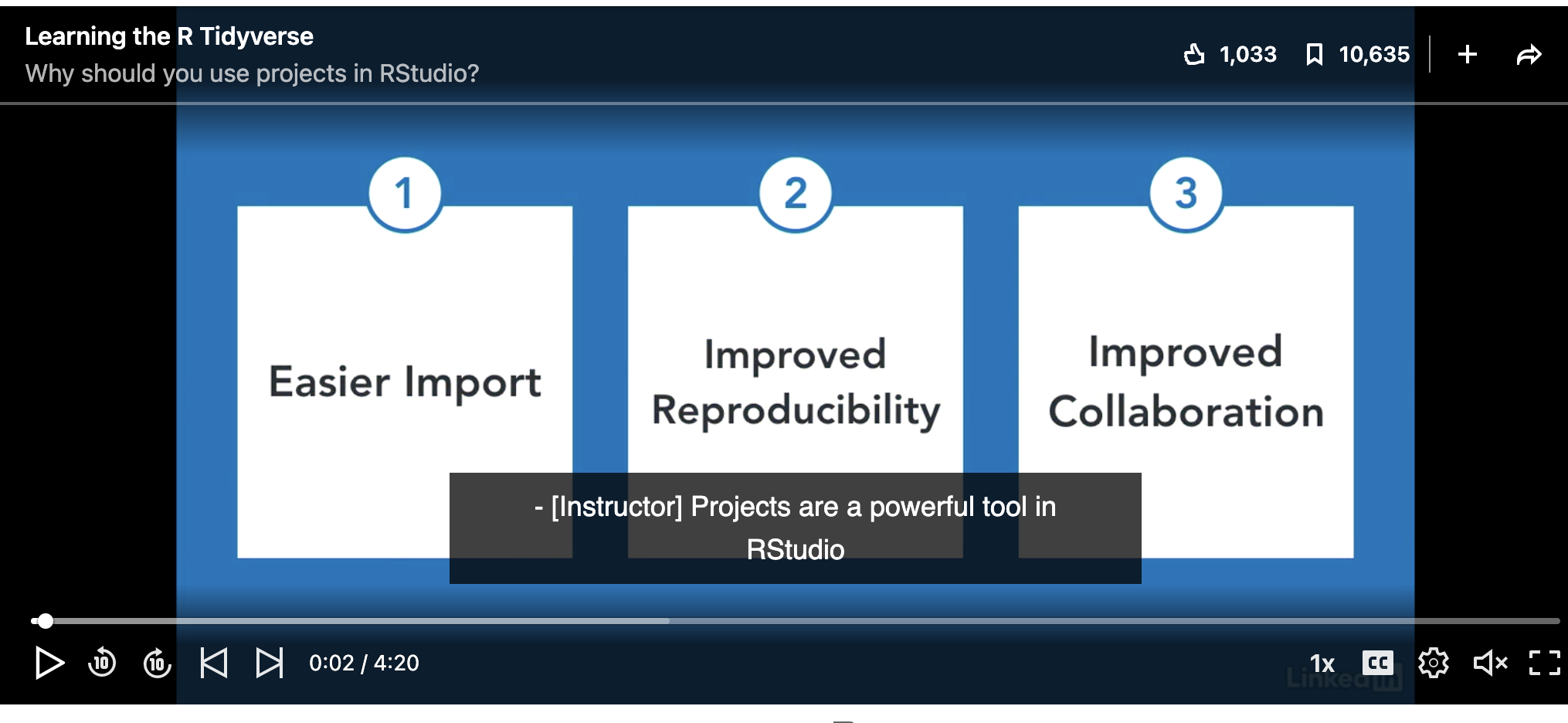
In this class, we will be using R-Projects. An R-project is a folder that will store everything to do with each lab in one place on your computer. On the website, each lab will be its own project.
This is incredibly useful - it means that if you switch from R-Cloud, to the lab computers, to your laptop, all you have to do is to move the folder and everything will just work. Equally, its easy to compare labs.
CLICK HERE to learn how to create/return to and use projects on R studio cloud.
CLICK HERE to learn how to create/return to and use projects on R-Desktop.
Learn more here. You will have a project for each Lab and I may share projects with example code.
Getting set up. Accessing R
There are two ways to do the labs, on your own computer or on the R studio Cloud website.
- DESKTOP: Means do this if you are using your own computer or laptop
- CLOUD: Means do this if you are using the website
You can switch between them easily if you need.
Using R Studio Cloud
The easiest way to get R-studio is to use the R-Studio Cloud website
This is an online version of R-Studio. and I believe it’s free for the first 25hrs each month. If you need more time, you can make a new account, or pay for one month, or move to your desktop.
- Advantages:
- It’s always up to date
- Super Easy. You will never have to worry about versions or updating.
- Projects are incredibly easy and I can debug things fast
- You can do your labs anywhere you have access to a webpage
- Disadvantages:
- It’s not as powerful, you won’t be able to play will millions of data points
- You have to be online; bad internet connections make it harder
To sign up, make an account at https://rstudio.cloud/plans/free, then click the tabs here to look around. Sadly there is no student pricing right now.
Before each lab, making a project
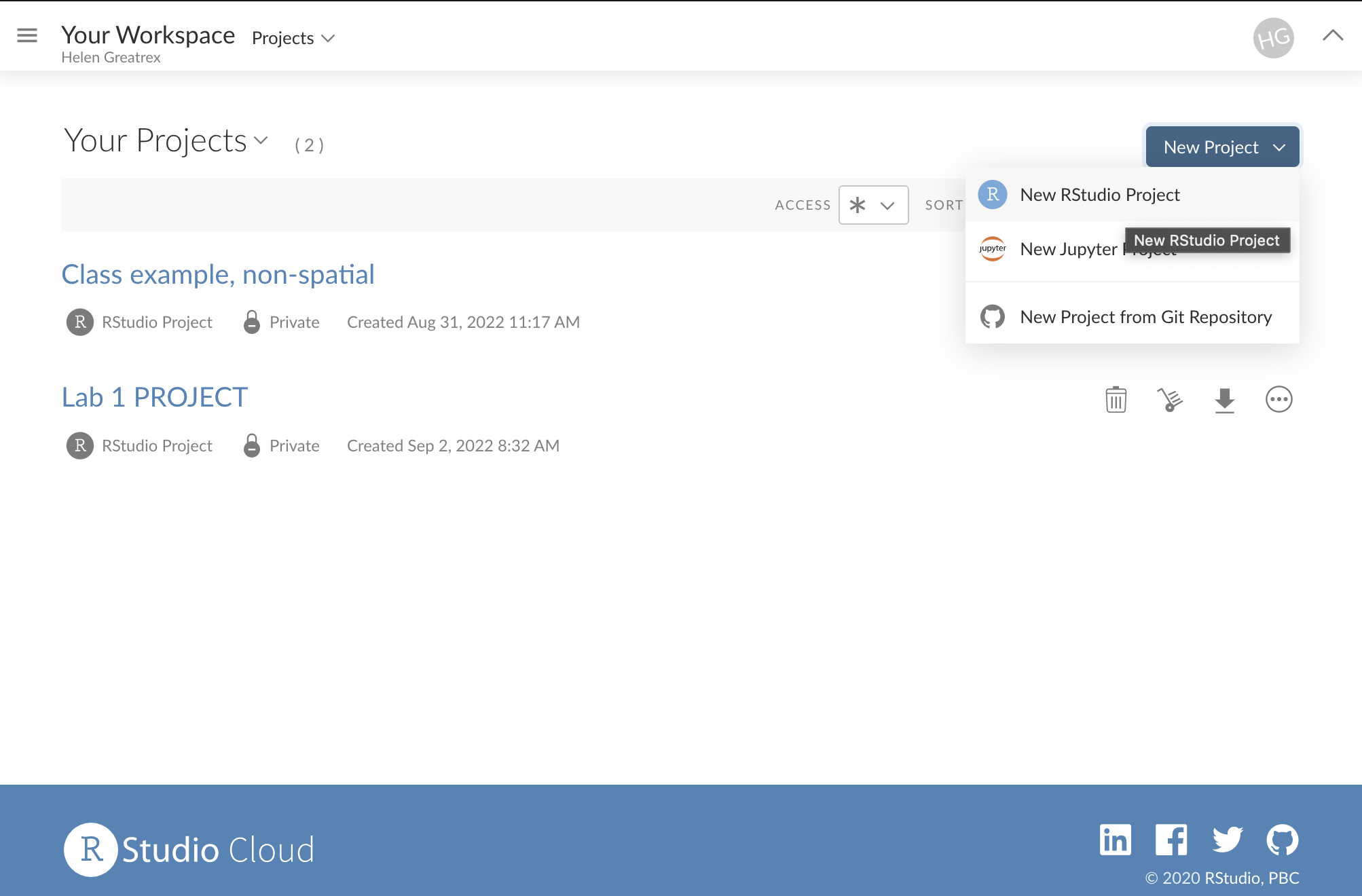
Once you have logged in, you will get to a dashboard like this, called the R-studio workspace. You make a new project by clicking the button on the top right. You can open different projects in different tabs on your browser. You can also go back to the work-space at any time.
You can get here from any web-browser, You do not need a special computer.
YOU SHOULD MAKE A NEW PROJECT FOR EACH LAB.
Returning to your lab project
On the cloud this is very easy, just go back to https://rstudio.cloud/content/yours
Downloading files
You will need to submit two files for each lab, an “.Rmd” and a “.html”. More later on those, but here is how to download them from the cloud so you can submit them
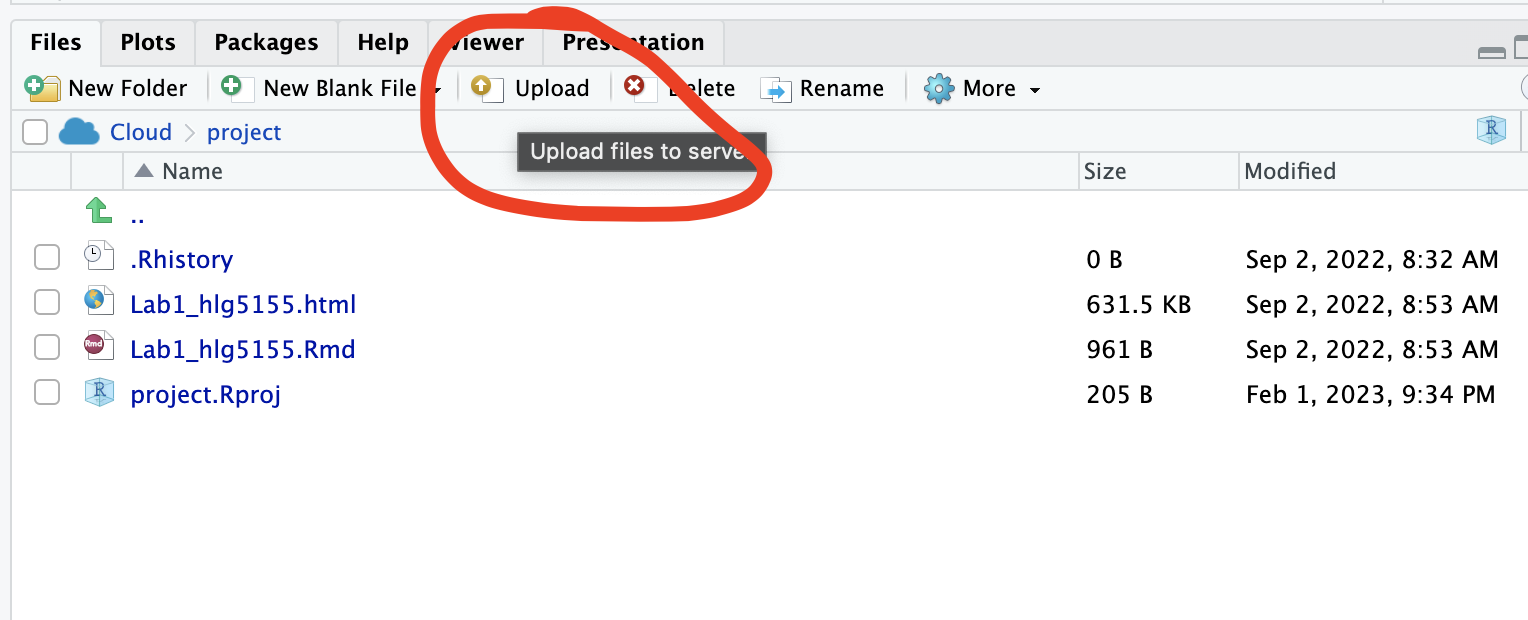
On the R-Studio Cloud website; inside your project, go to the files tab (next to Projects/Help in one quadrant. You will see a list of files, one with the file type .Rmd (your code) and one with .html(the website you made when you pressed knit). Look at the red circle in the pic below
Click the check-box to the left of the .RmD file
Look just above at the Files quadrant settings menu. Click the blue “more” cogwheel icon. (see diagram). You might need to make R-Studio full screen to see it.
Now click export. This will download the file
REPEAT FOR THE HTML (you can do them together but it exports as a zip)
Submit both files on Canvas

Uploading files
Sometimes you want to put your code into R-Studio Cloud, for example if for one week you don’t want to bring your laptop.
Make a project for the lab, then click the upload button inside your project in the files tab and upload your files. You will only need the .RmD file and any data files. You do not need the html etc (as you create that when you press knit)
Using R on your Laptop/Desktop
If you have your own computer, you can run R and R-Studio for free on there.
- Advantages:
- Its powerful and we will learn how to use and update it
- No need for the internet
- You can play with millions of data points
- Disadvantages:
- It can be annoying to install and update, especially on old computers.
- You are tied to your laptop/computer (although you can uplaod your files to the cloud)
The VERSION of R you use is important!
If you already have R and/or R-Studio, it is very important you update BOTH of them to the most recent version. To do so, pretend you are installing them from scratch. If you are worried this will affect another class, chat with Dr Greatrex before starting out.
Why is this so important? Just as English has evolved over the years, the R language is always evolving. We keep track using Versions.
To make sure we are all on the same page, you need the most up-to-date version of the R commands.
The version of R I am using is :
[1] "R version 4.3.1 (2023-06-16) Beagle Scouts"As long as yours is that or above that you should be fine. The current most recent version of the language on the website is:
[1] "The latest release (2023-10-31, Eye Holes)"Installing/updating R.
To make R-Studio run on your computer, you need to download TWO things:
- R: The thing that teaches your computer the ability to “speak” in R
- The R studio software itself
On a PC:
[STEP 1 of 2] Download & install the R-language itself:
- Go to: https://cloud.r-project.org/bin/windows/base/ ,
- Download this version of R (the main download R for windows button)
[1] "The latest release (2023-10-31, Eye Holes)"- Run and click next through all the options[STEP 2 of 2] Download & install R studio:
- Go to: https://www.rstudio.com/products/rstudio/download/#download> ,
- download R studio for windows
- Run and click next through all the options
On a Mac:
[STEP 1 of 2] Download & install the R-language itself for mac:
- Go to:https://cloud.r-project.org/bin/macosx/ ,
- download this version of R (the .pkg file on the left menu)
[1] "The latest release (2023-10-31, Eye Holes)"- Run and click next through all the options
[STEP 2 of 2] Download & install R studio for mac:
- Go to: https://www.rstudio.com/products/rstudio/download/#download> ,
- download R studio for Mac
- Run and click next through all the options
Before each lab, making a project
IMPORTANT! If you haven’t already, on an easy to access place on your computer, make a folder called STAT-462. This is where ALL your labs are going to live.
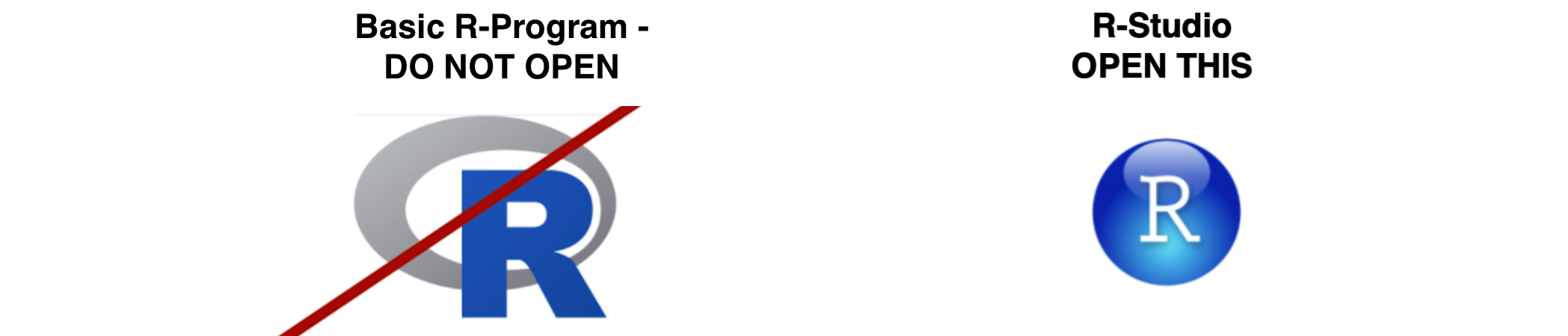
Now everything is installed, open R-studio (NOT R!).
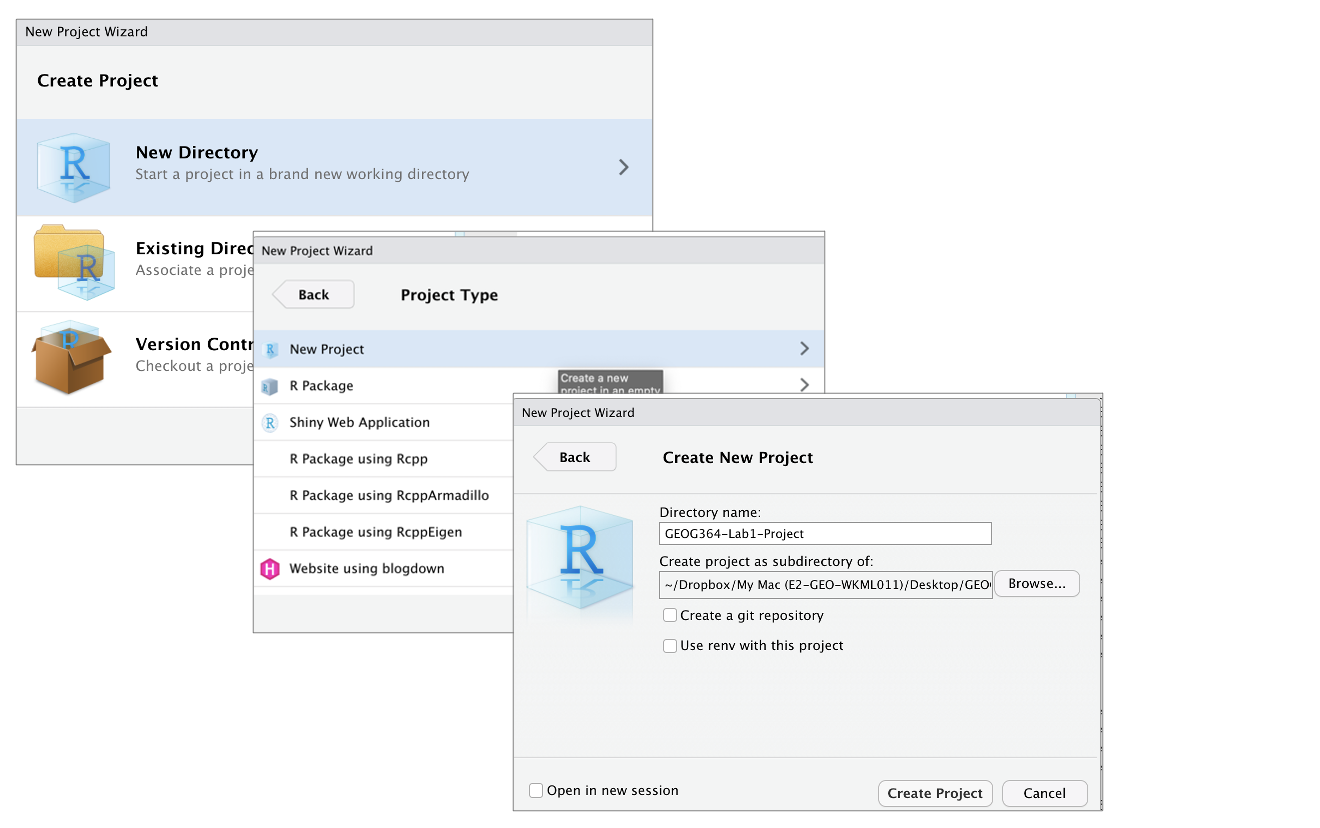
Go to the file menu at the very top and click
New ProjectSelect
New Directory, thenNew ProjectName your project STAT462-Lab1-PROJECT (or whatever lab it us)
Under “create project as a subdirectory of”, hit the browse button and find your STAT-364 folder (you just need to be in the folder, you don’t need to have selected anything). Press open
Finally, press
Create Project
How to check you are in a project
R will change slightly. If you look at the top of the screen in the title bar, it should say something like STAT462-Lab1-Project R Studio.
The Files tab should have gone to your project folder. Essentially, R-Studio is now “looking” inside your Lab 1 folder, making it easier to find your data and output your results.
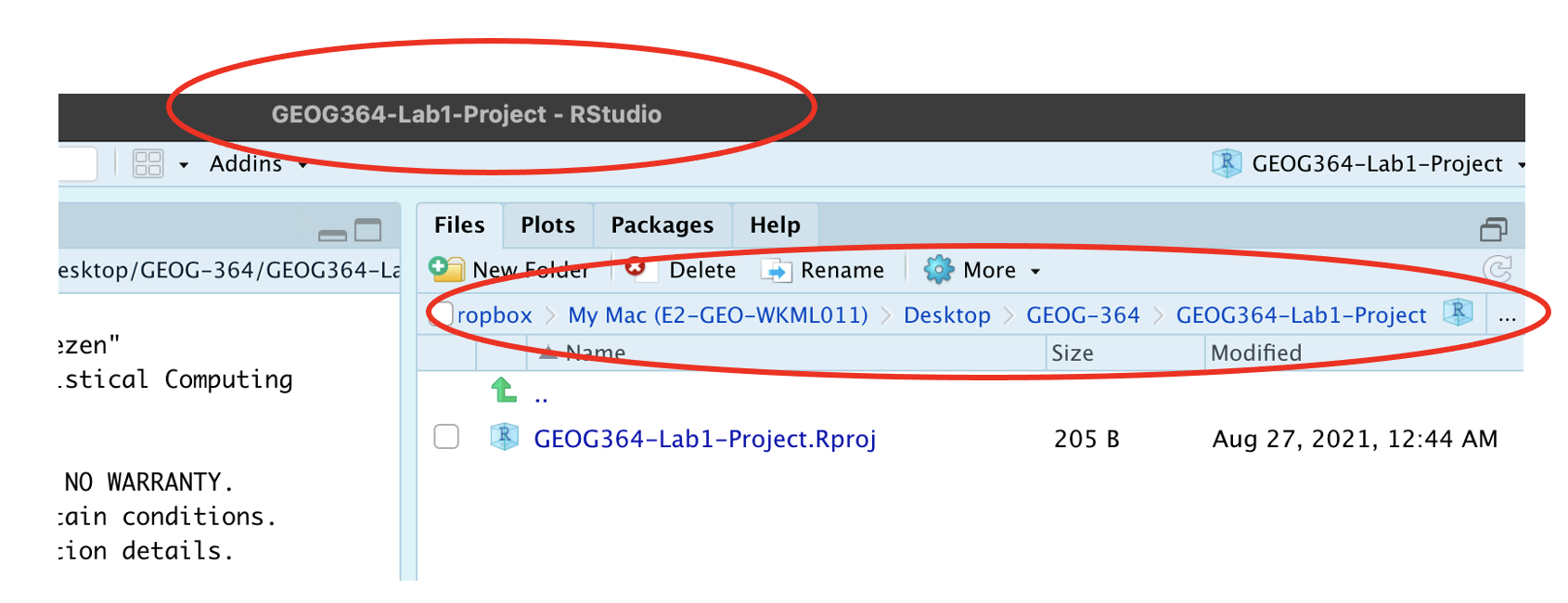
Essentially, R-Studio is now “looking” inside your Lab 1 folder, making it easier to find your data and output your results.
If you want one, final check, try typing this into the console (INCLUDING THE EMPTY PARANTHESES/BRACKETS), press enter and see if it prints out the location of Lab 1 on your computer. If not, talk to an instructor.
getwd()Returning to your lab project
OK, let’s imagine that you get halfway through your lab and your computer dies. How do you get back to your Lab work? Try this now. Close down R-Studio.
To reopen a lab:
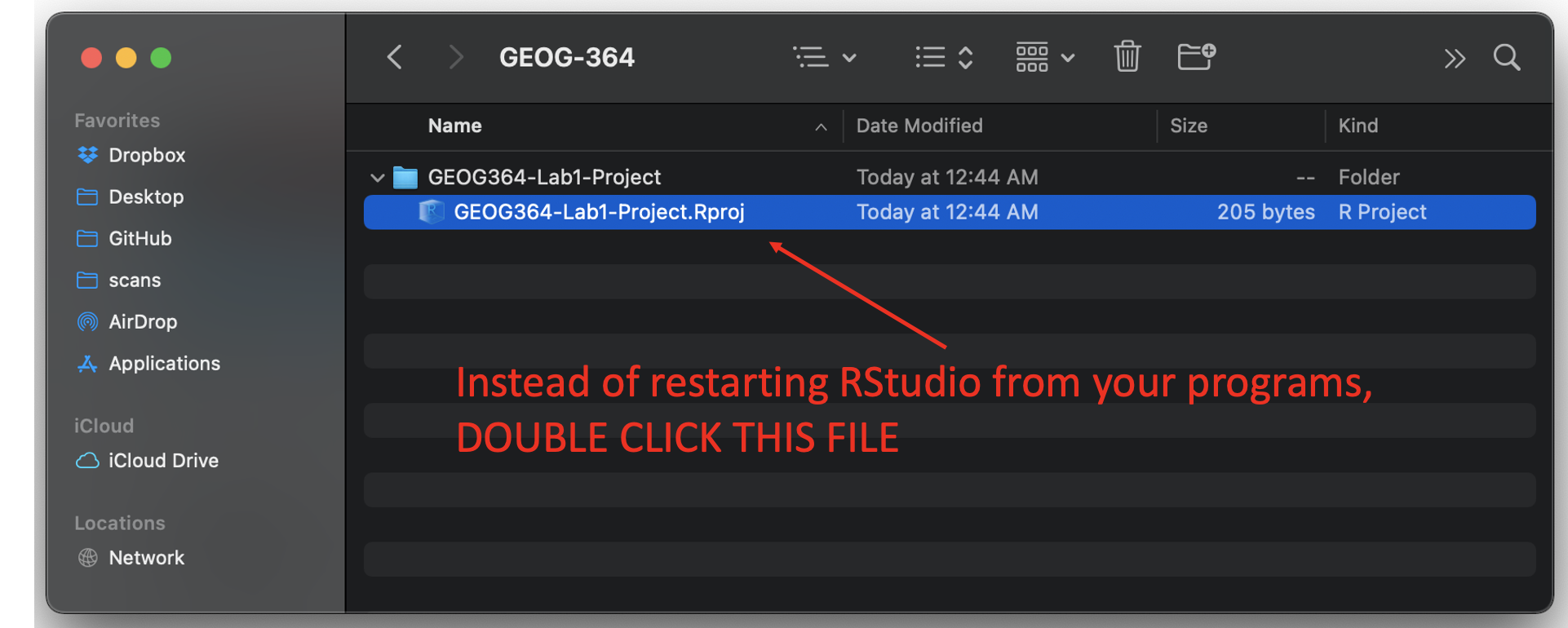
DO NOT RE-OPEN R-STUDIO!
Instead navigate on your computer to your STAT-462/STAT462-Lab1-Project folder.
Double click on the STAT462-Lab1-Project.RProj file.
This will reopen R for that specific lab, so you can continue where you left off. It means you can also open several versions of R studio for multiple labs, which can be very useful in staying sane
What is the R screen showing me?
Want to understand more about what the screens do, or change the appearance?
The screen
You will be greeted by three panels:
- The interactive R console (entire left)
- Environment/History (tabbed in upper right)
- Files/Plots/Packages/Help/Viewer (tabbed in lower right)
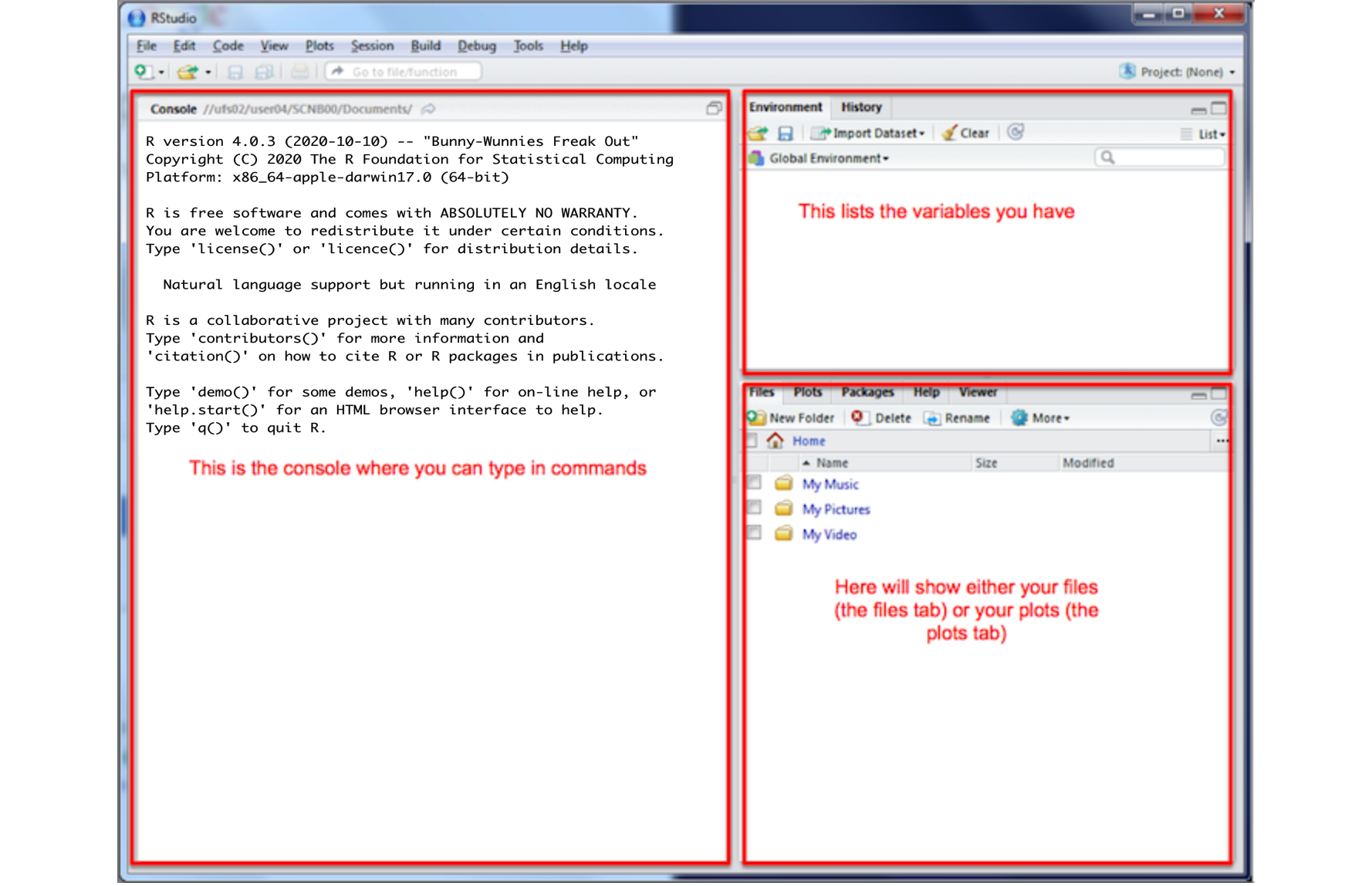
If you wish to learn more about what these windows do, have a look at this resource, from the Pirates Guide to R: https://bookdown.org/ndphillips/YaRrr/the-four-rstudio-windows.html.
If you have used R before, you might see that there are variables and plots etc already loaded. It is always good to clear these before you start a new analysis. To do this, click the little broom symbol in your environment tab
Moving the 4 quadrants around
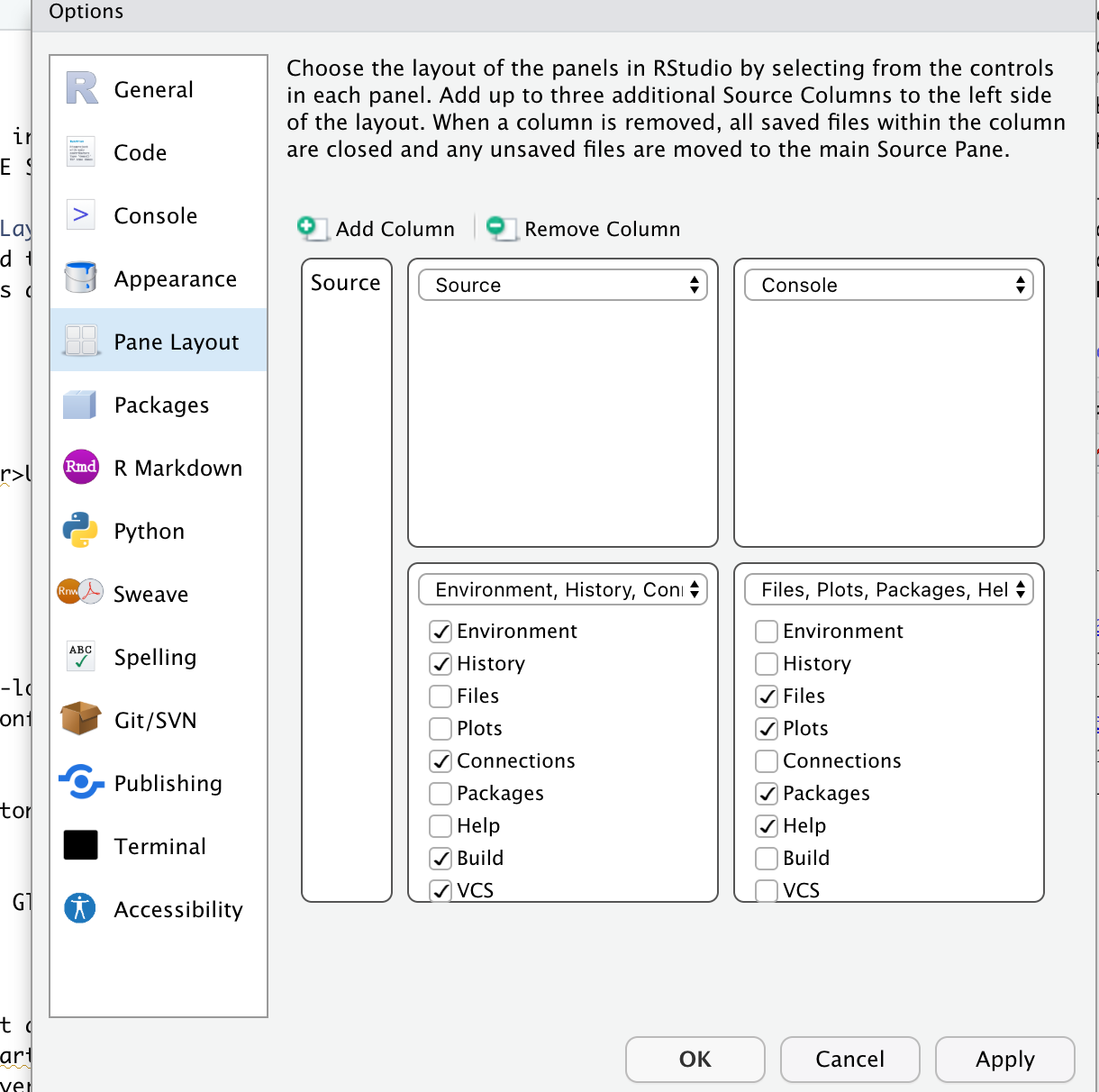
You might find you like the different quadrants in a different order. To change this, look at the menu at VERY TOP OF THE SCREEN.
- In the
Viewmenu, there is a/Panes/Pane Layoutmenu item, where you can move the on-screen quadrants around. I tend to like the console to be top left and scripts to be top right, with the plots and environment on the bottom - but this is personal choice.
- There should also be a menu called
Help
Useful for R-studio version and Markdown cheatsheets.
Changing global settings
R-studio wants to be helpful and will try to re-load exactly where you were in a project when you log back in. This can get confusing, so we are going to turn this off.
There are two places you might find the options. Depending on how you are using R-studio, you will EITHER find it by:
- Click on the R-studio menu button on the top left of the screen, then click Preferences.
OR
- Click on the tools menu button on the top right of the screen,-> Global Options
Now:
UNCLICK “Restore most recently opened project at startup”
UNCLICK “Restore .RData into workspace on startup”
Set “Save workspace to .RData on” exit to Never
UNCLICK “Restore previously open source documents on startup”
You can also click the appearances tab to change how the screen looks.