1 How to download/install packages
Just as you don’t need to go to the app store every time you use your weather app, you only need to download and install packages once. There are two methods
- Clicking the INSTALL button in the Packages tab, then start typing the package name and it will show up (check the include dependencies box).
- In the console, run the
install.packages()command with quotes around the package name e.g.install.packages("bardr").
Try installing the bardr package onto your computer
2 How to load packages you want to use
Installing a package doesn’t make it available to you. For that you
need to load it (like clicking on an app). This can be done with the
library() command.
In the console type this to install the full works of Shakespeare in the bardr package (https://www.rdocumentation.org/packages/bardr/versions/0.0.9)
library(bardr)2.1 What should happen?
If you have managed to install a package successfully, often nothing happens - this is great! It means it loaded the package without errors.
Otherwise, I suggest running this command TWICE! This is because loading packages will print “friendly messages” or “welcome text” the first time you load them.
For example, this is what shows up when you install the tidyverse package. The welcome text is indicating the sub-packages that tidyverse downloaded and also that some commands now have a different meaning.
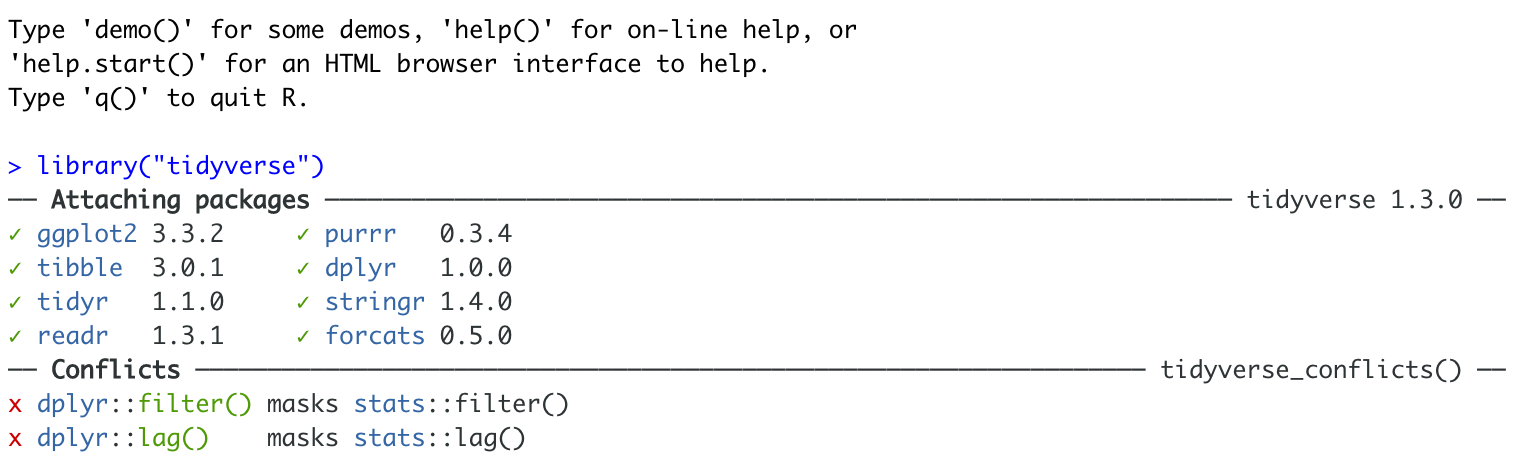
Tidyverse install messages
To find out if what you are seeing is a friendly message or an error, run the command again. If you run it a second time and there is no error then nothing should happen.
3 How to force the computer to use a specific command/packages
You can also use any command from any package by naming it and using ::
For example, this command forces the computer to use the dplyr package version of filter.
dplyr::filter(mydata)